Overview
The Financial Details report gives you a searchable, invoice-level view of your business's financials in one place. It is new in Paw Metrics 2.0 and is currently in Beta.
Use it to answer questions like "Which invoices checked out last week are still unpaid?" or "How much did we collect by card this month?" without piecing together several reports.
With this report you can:
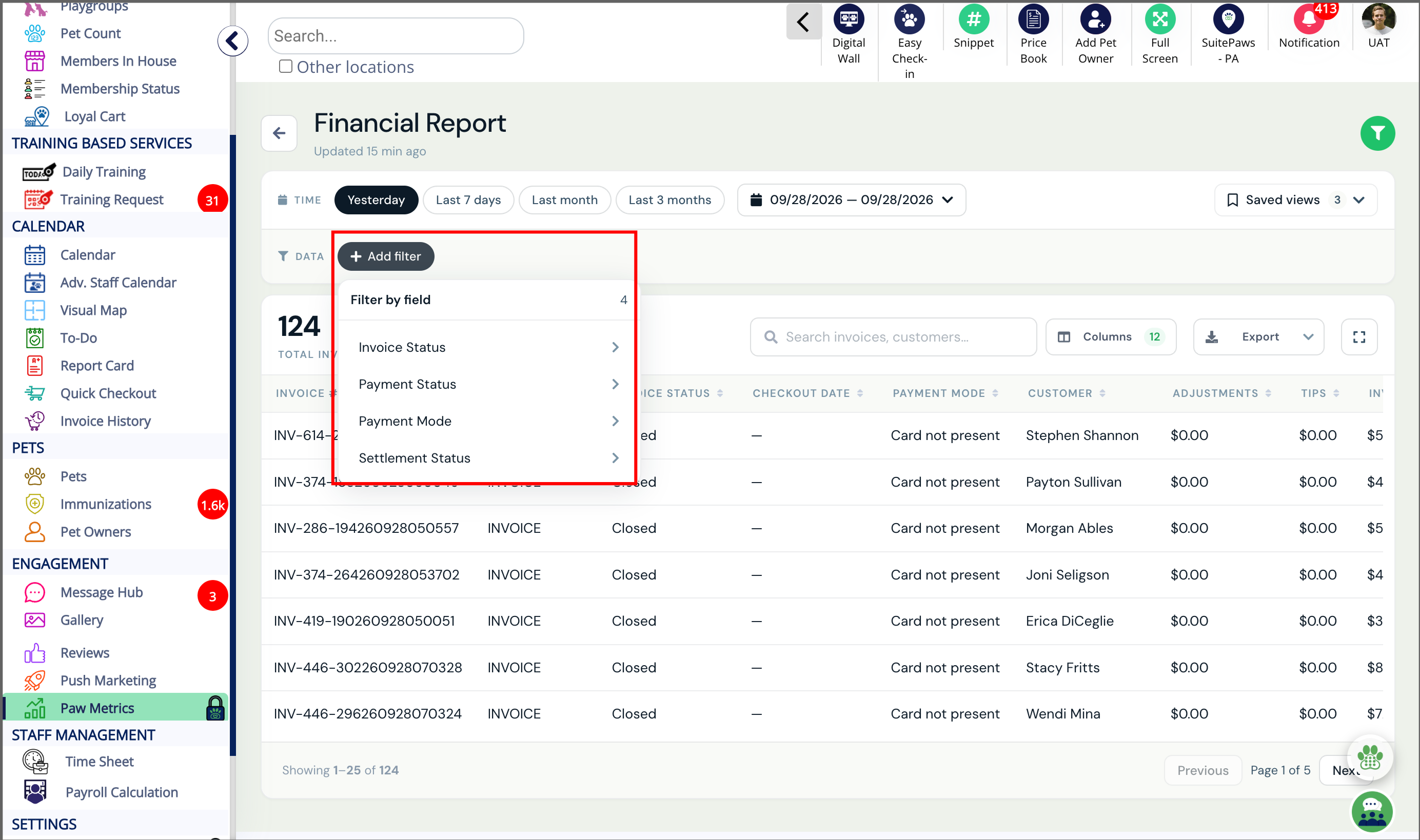
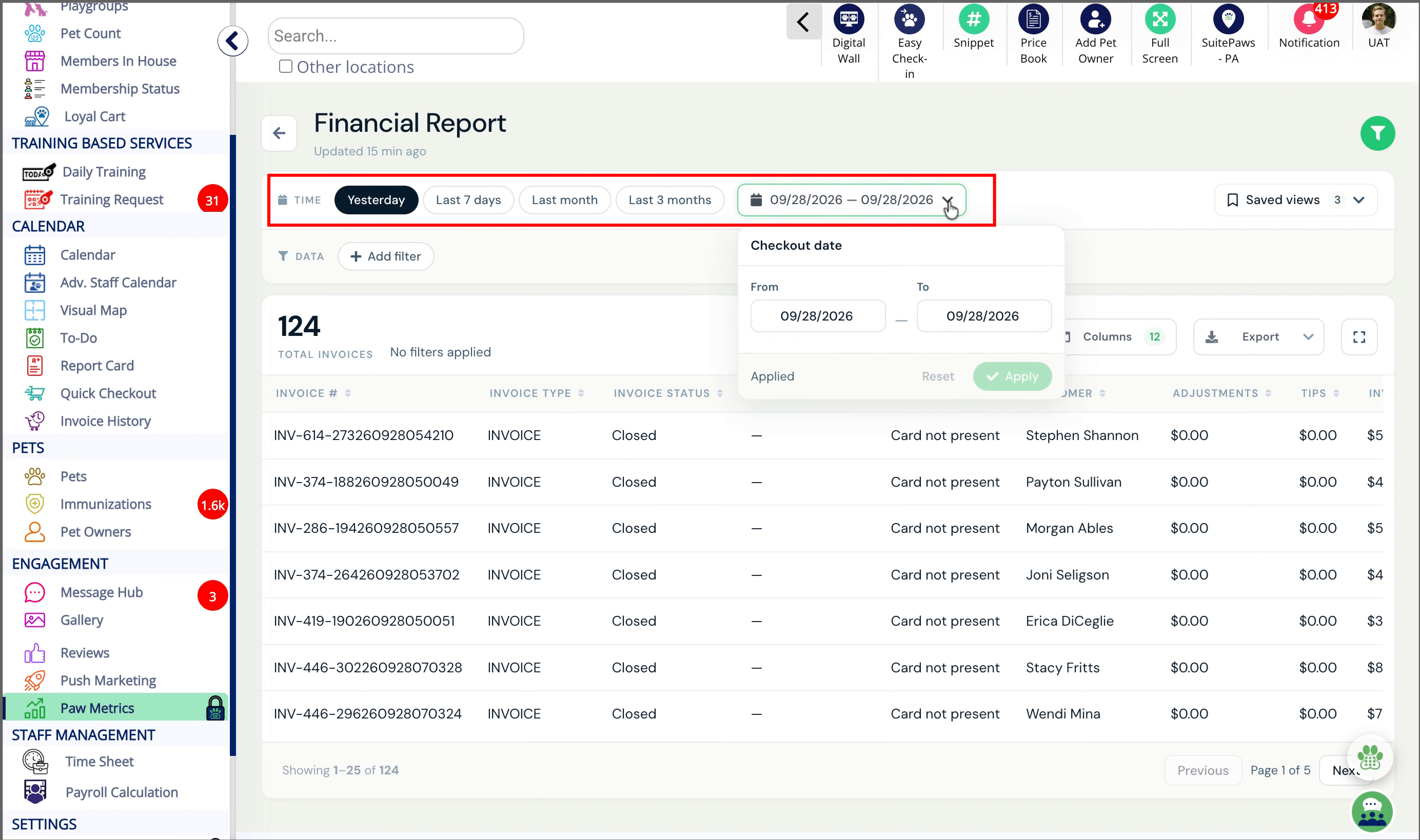
- Filter by Date Range, Invoice Status, Invoice Type, Payment Status, and Payment Mode
- See invoice, customer, payment, adjustment, tip, and balance details in one searchable table, with currency and dates formatted for your business
- Choose which columns to show, so the table holds only the fields you care about
- Collapse the filter bar with Show/Hide Filters to give the table more room
- Export the results
- Save your filter and column setup as a Saved View and share it with your whole team
Send feedback or report issues to puppylove@runloyal.com.
TABLE OF CONTENTS
Requirements
Open your portal using Google Chrome on a desktop or laptop.
Before running this report, make sure you:
- Have access to the Business Portal
- Have permission to access Paw Metrics reports
Portal Path
Financial Details Report (Beta)
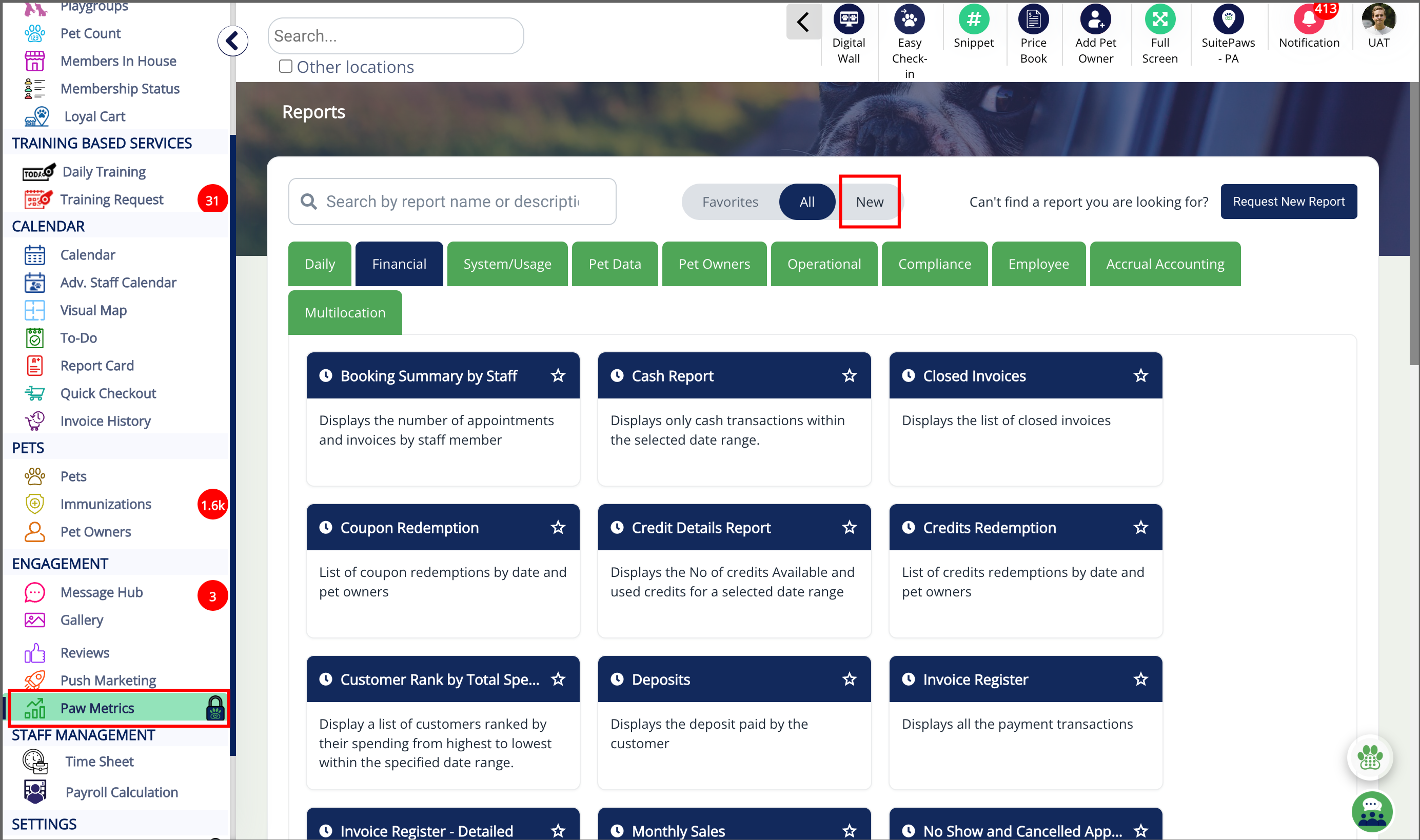
Engagement > Paw Metrics > New > Financial Report
How to view financial reports?
1. Paw Metrics
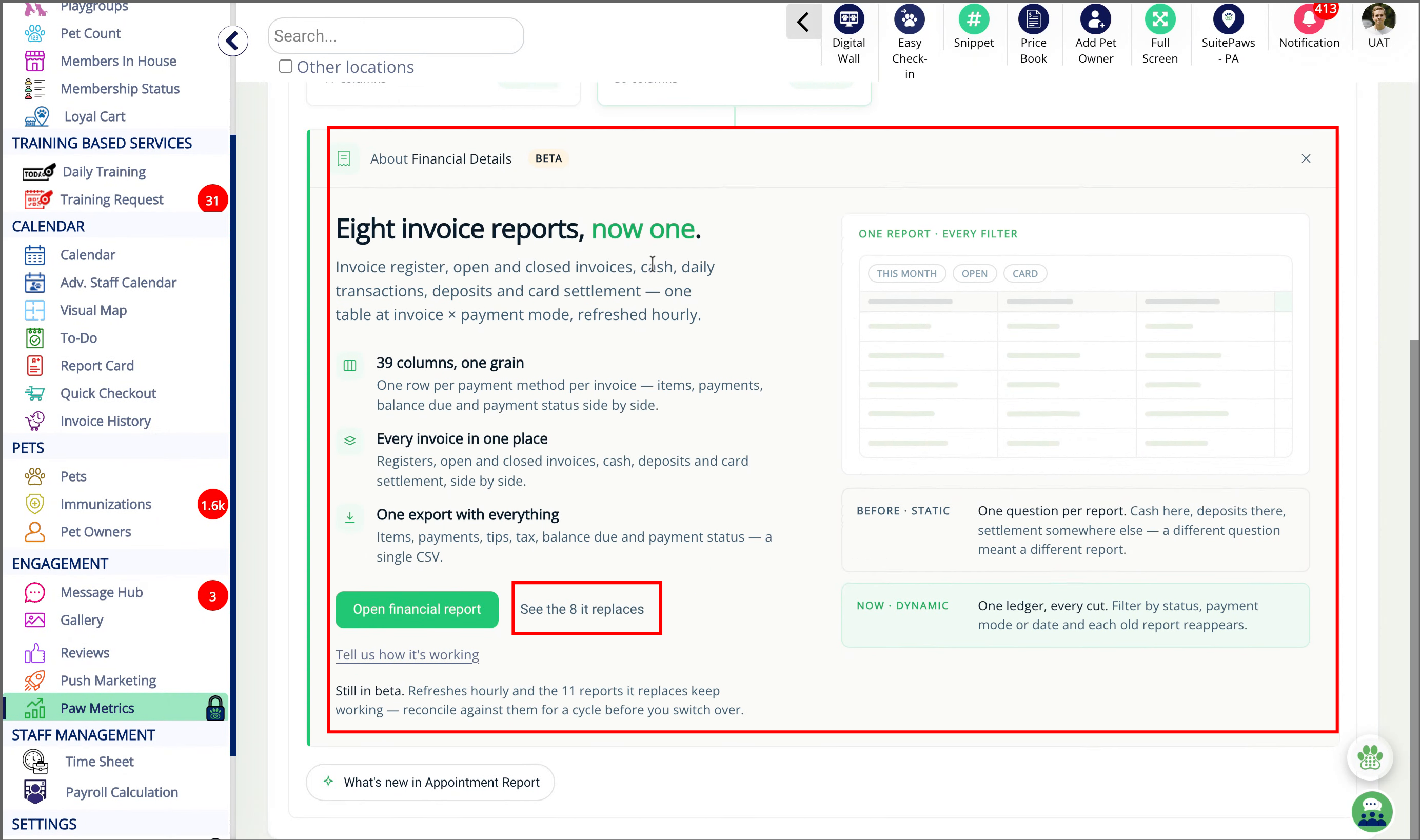
2. Review Financial Report Description
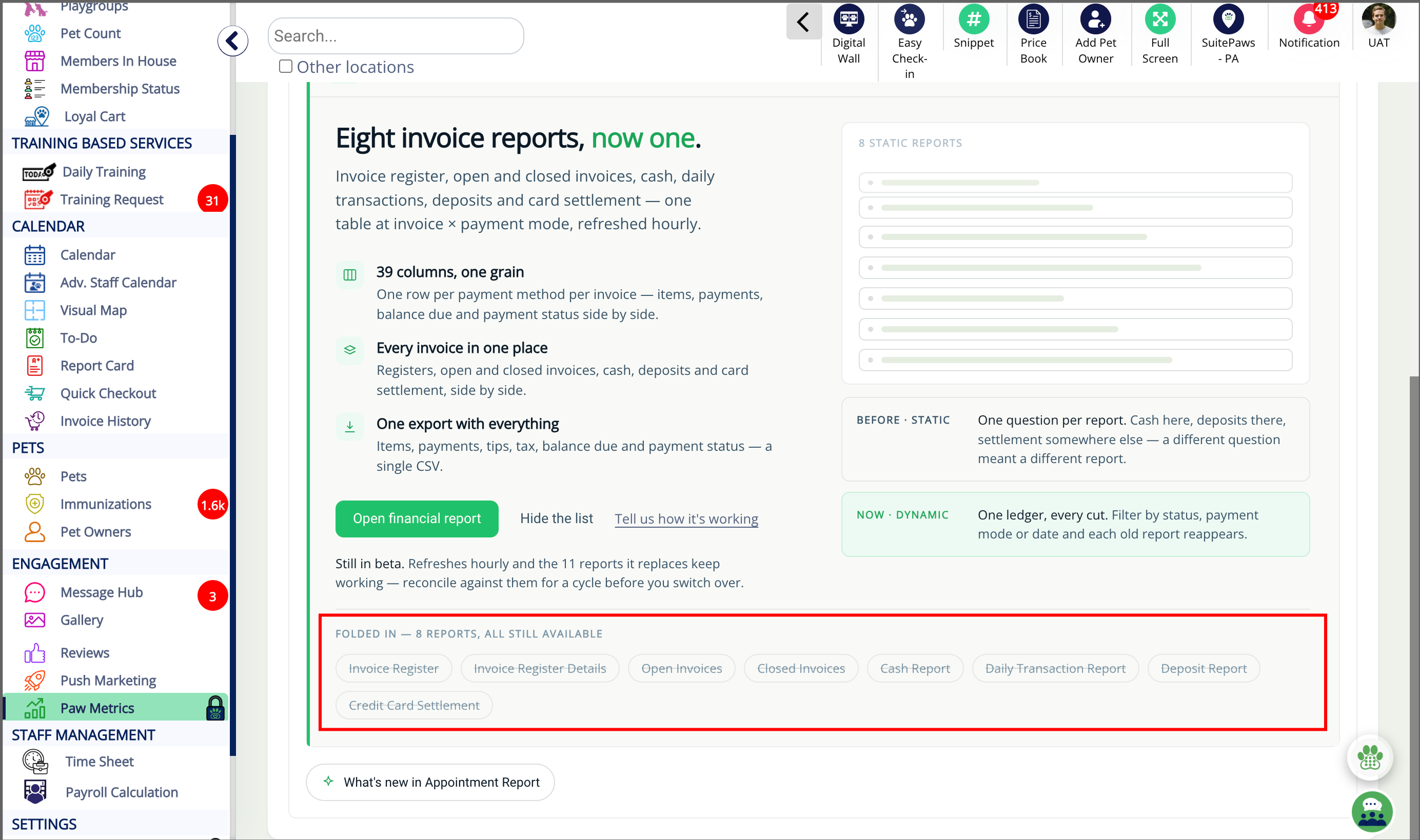
3. View Folded Reports List
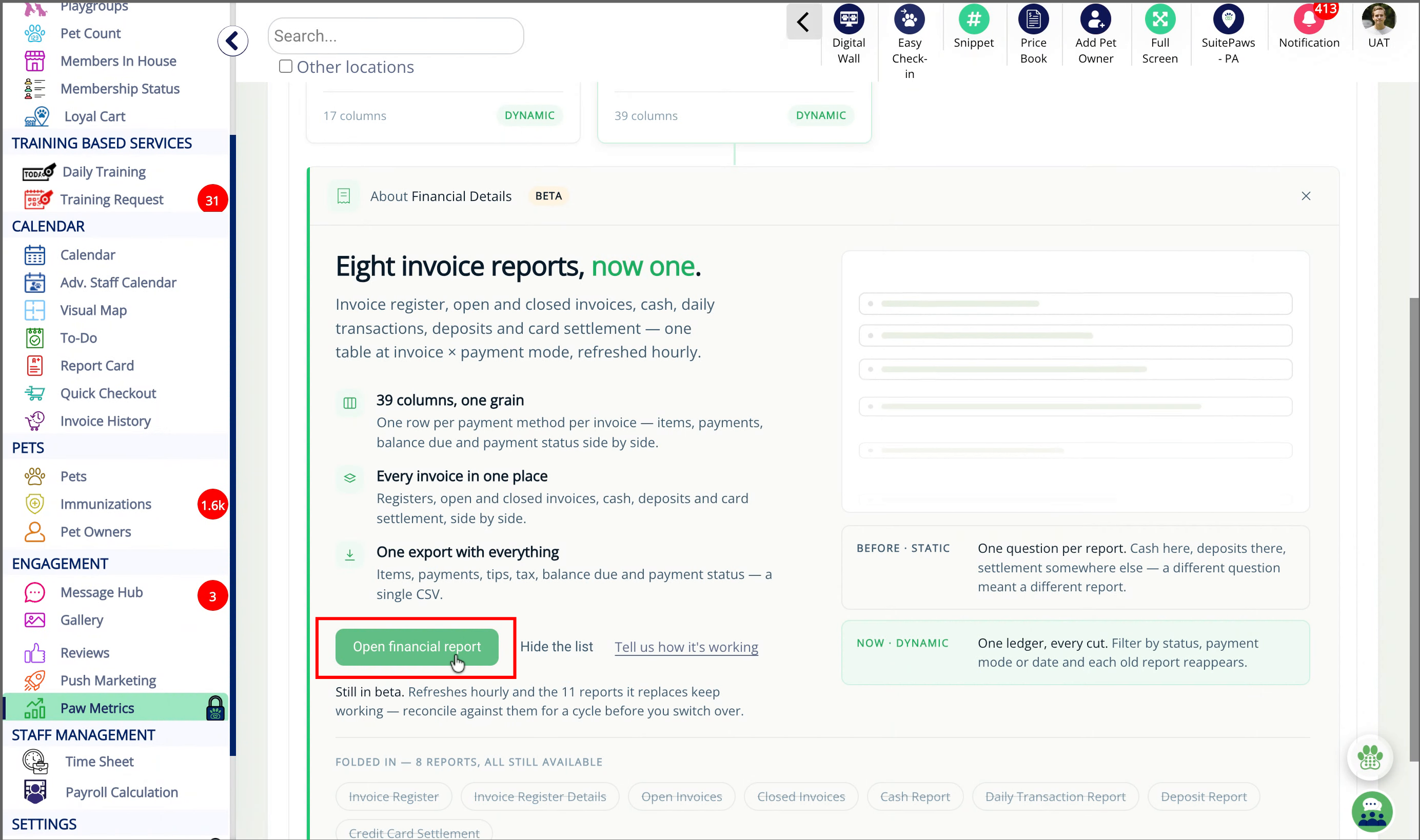
4. Open Financial Report
5. Financial Report
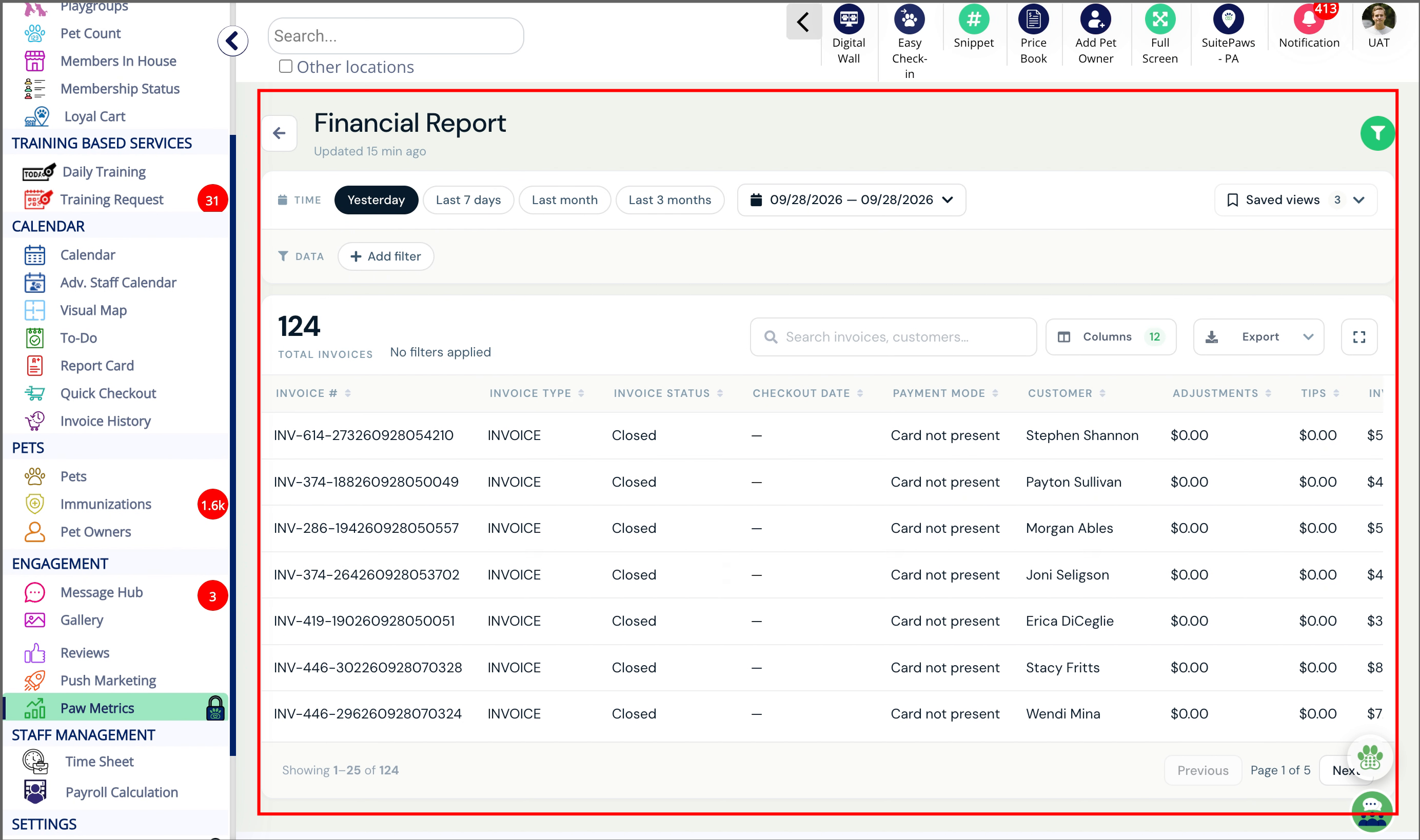
6. Access Additional Filters
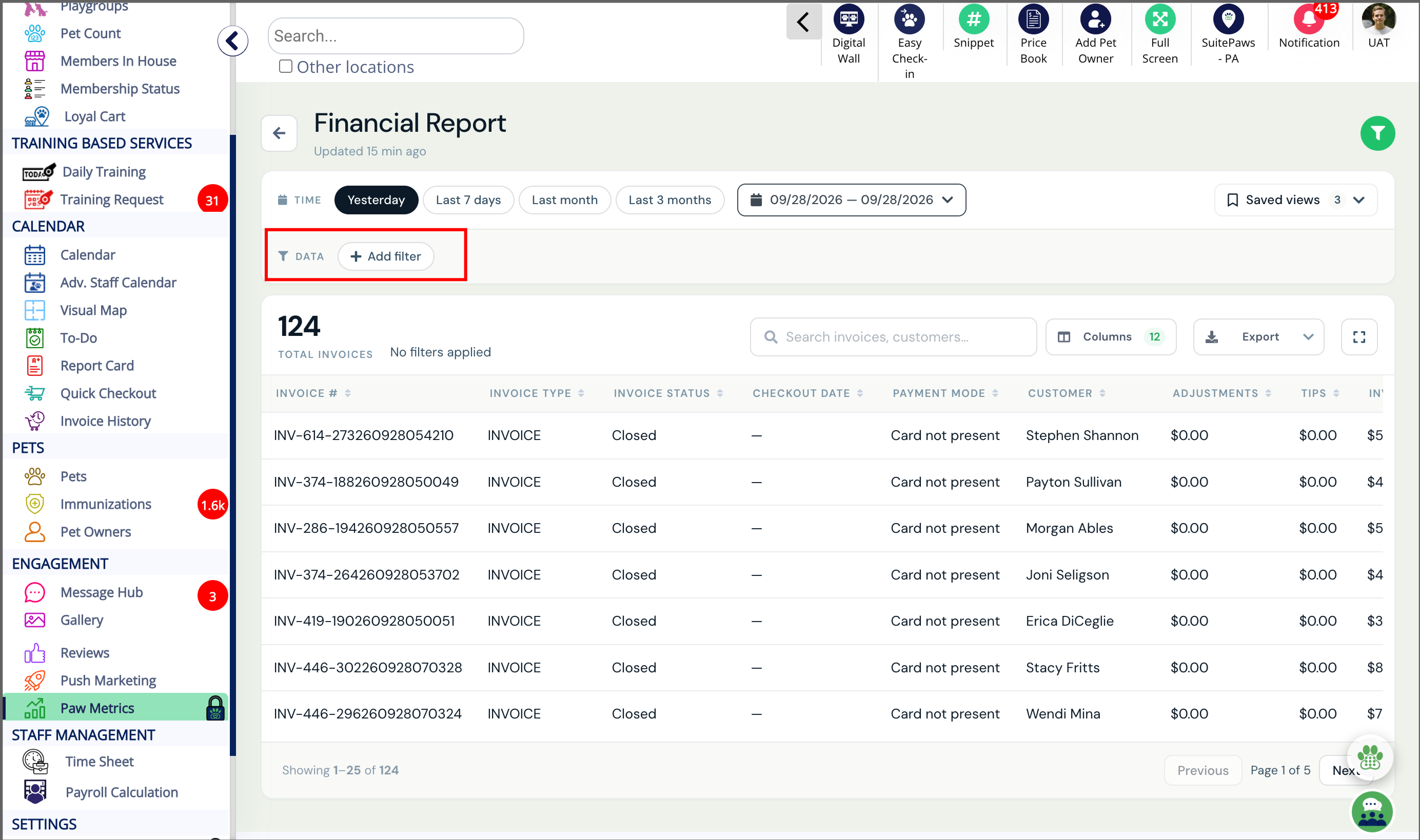
7. Open Filter Options
8. Select Report Duration
9. Select Saved Views
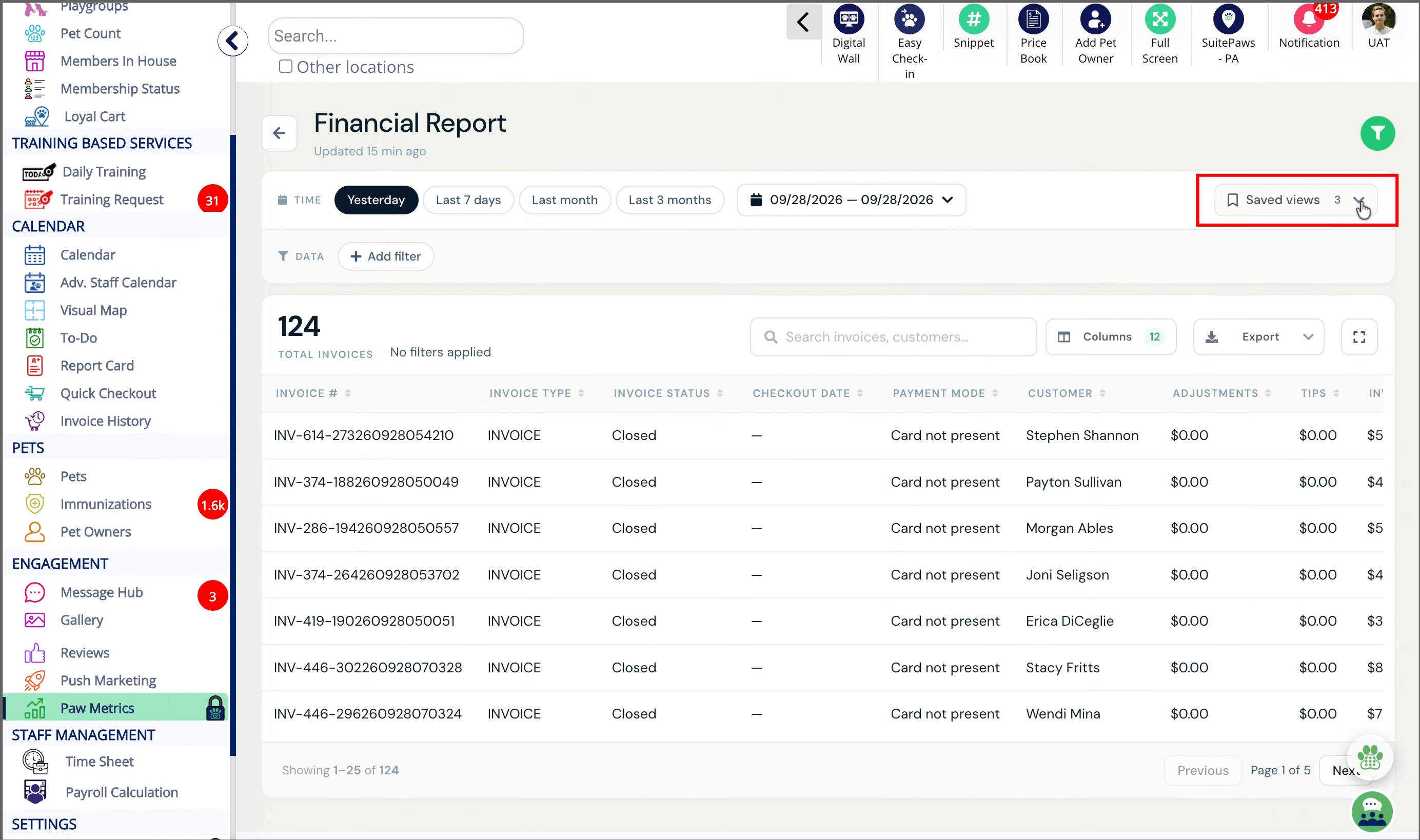
10. Saved View
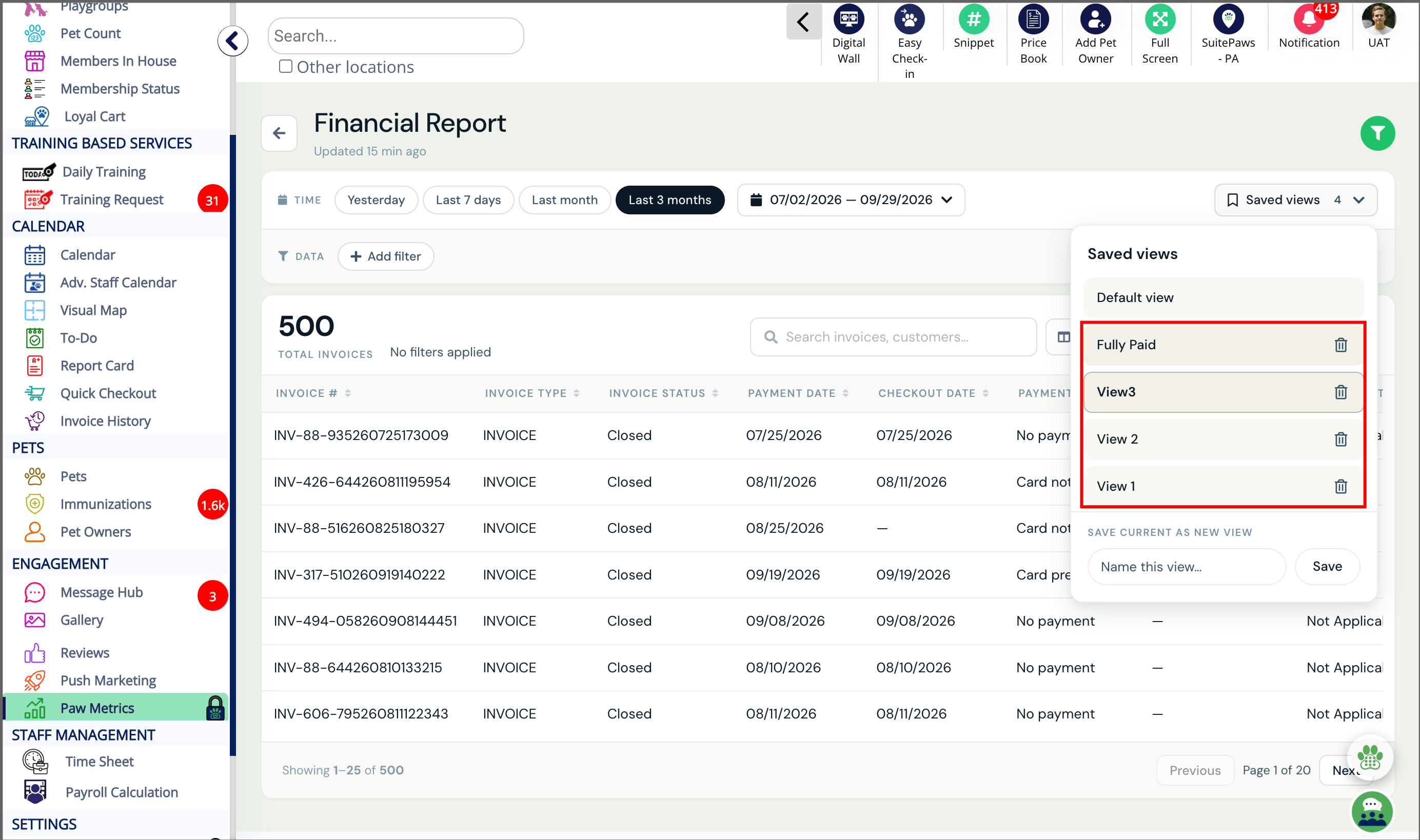
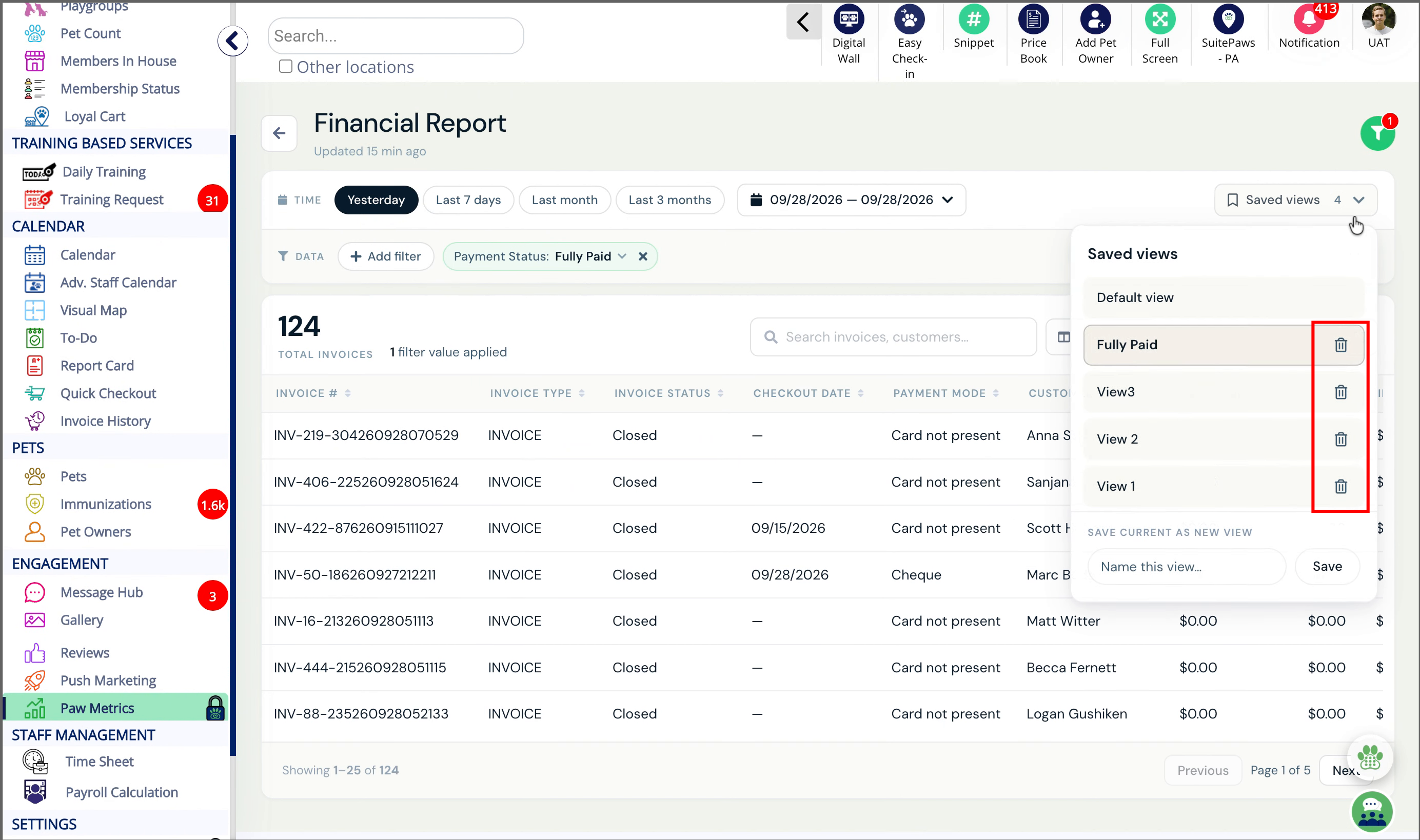
11. Delete Saved View
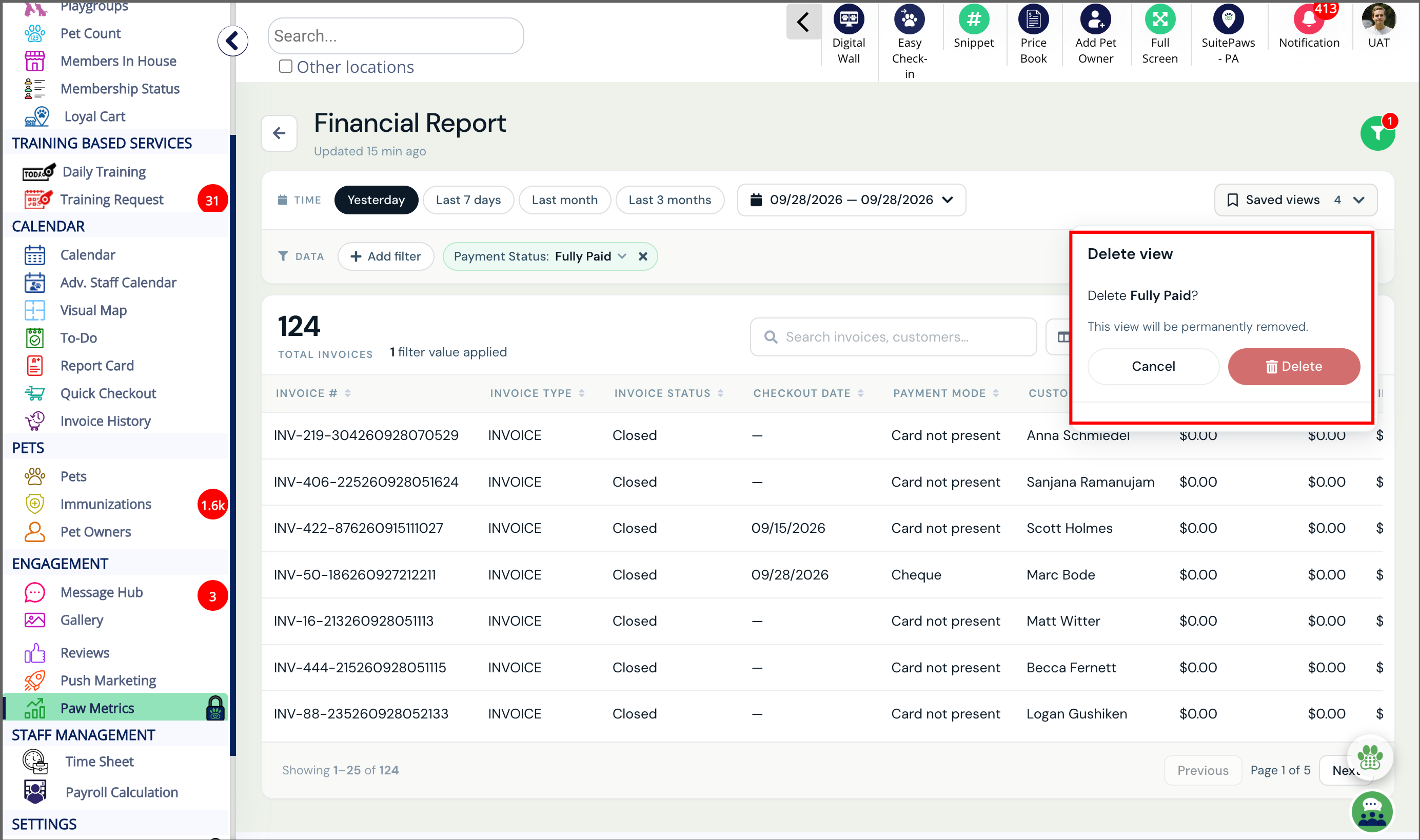
12. Confirm View Deletion
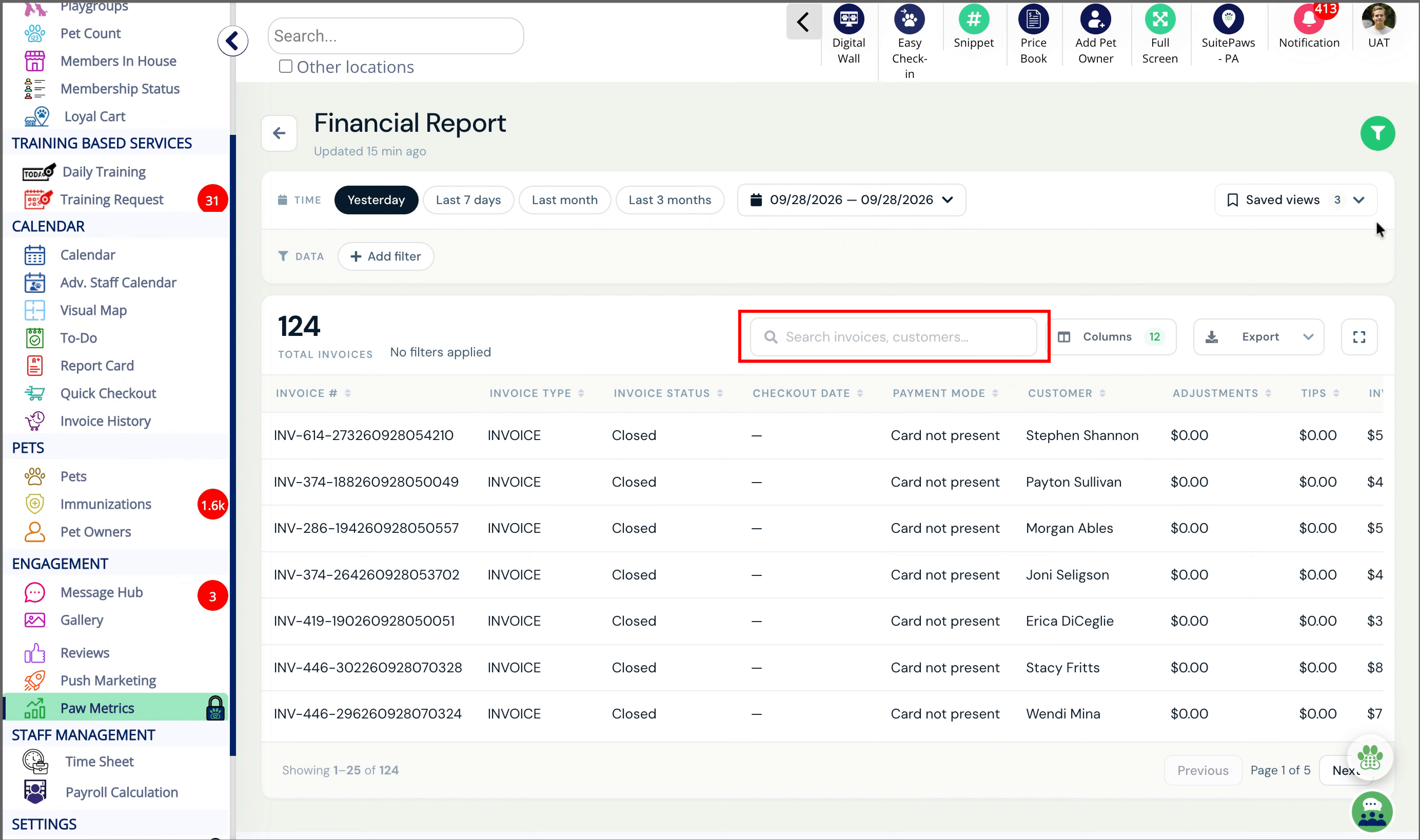
13. Search
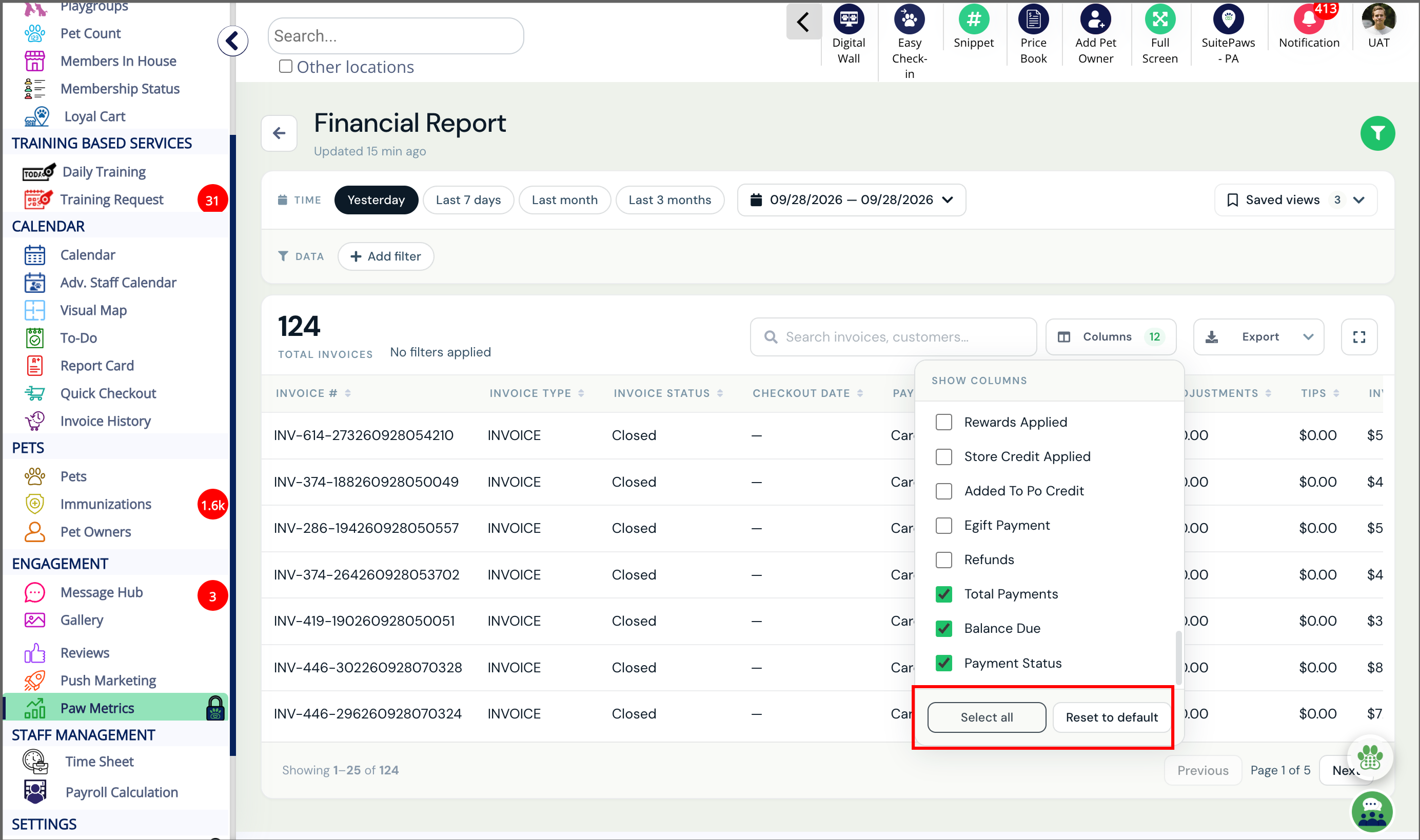
14. Select All or Reset to default
More Information
For more information on how to use paw metrics, please refer to this article: How To Use Paw Metrics
For more information on Paw Metrics (Reports) – Overview and How to Use, please refer to this article: Pawmetrics (Reports) – Overview and How to Use
Was this article helpful?
That’s Great!
Thank you for your feedback
Sorry! We couldn't be helpful
Thank you for your feedback
Feedback sent
We appreciate your effort and will try to fix the article